Polylang doesn't support Elementor templates out of the box. You need to enable this manually.
Enable template translation#
Go to Languages → Settings → Custom Post Types and Taxonomies. Find elementor_library in the list and check the box. Save.
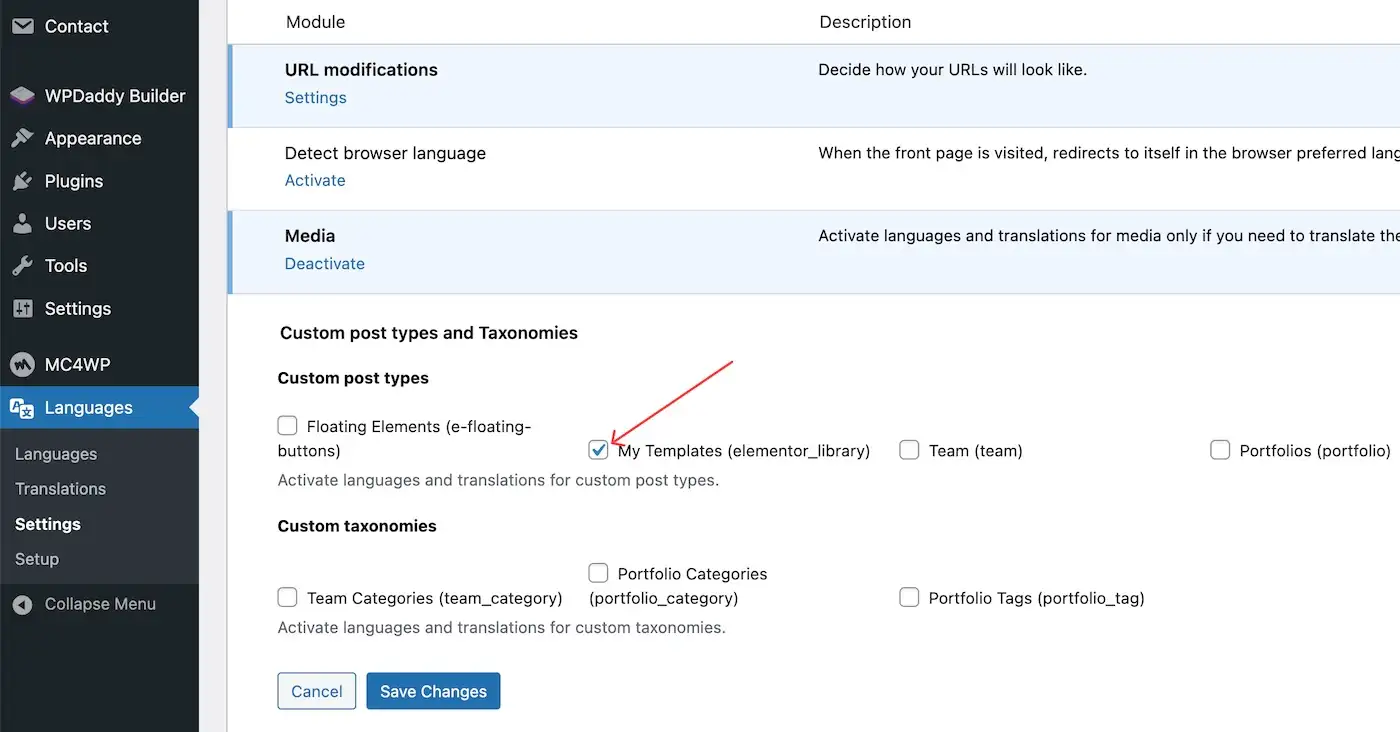
This tells Polylang to treat Elementor templates as translatable content - just like posts and pages.
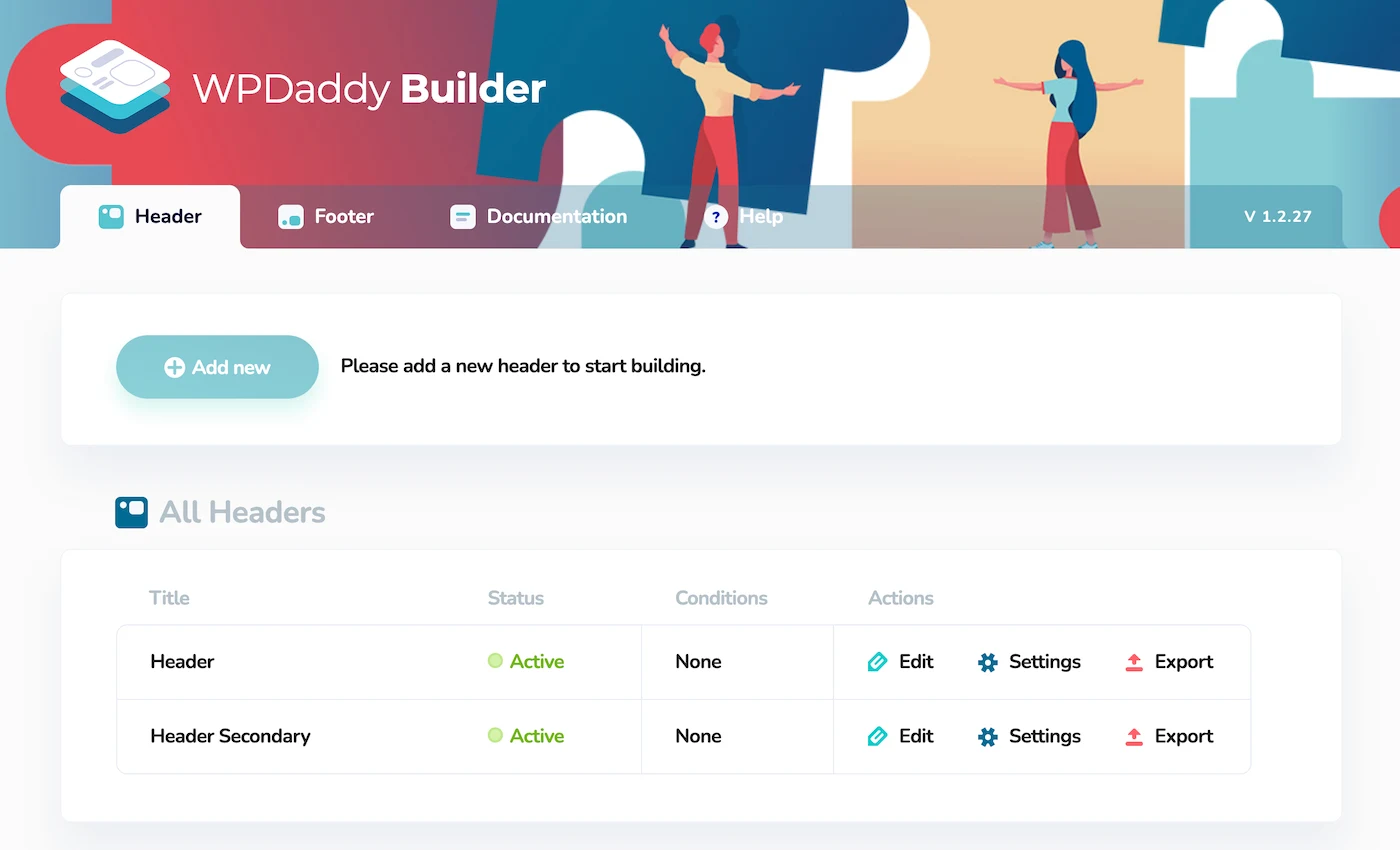
Please make sure that your different language header and footer are active in WPDA builder.
Translate a header or footer template#
Open Templates → Saved Templates. You'll now see the language column next to each template, same as with regular posts. Important, please select "All Languages" at the top panel, because by default no template has assigned language.
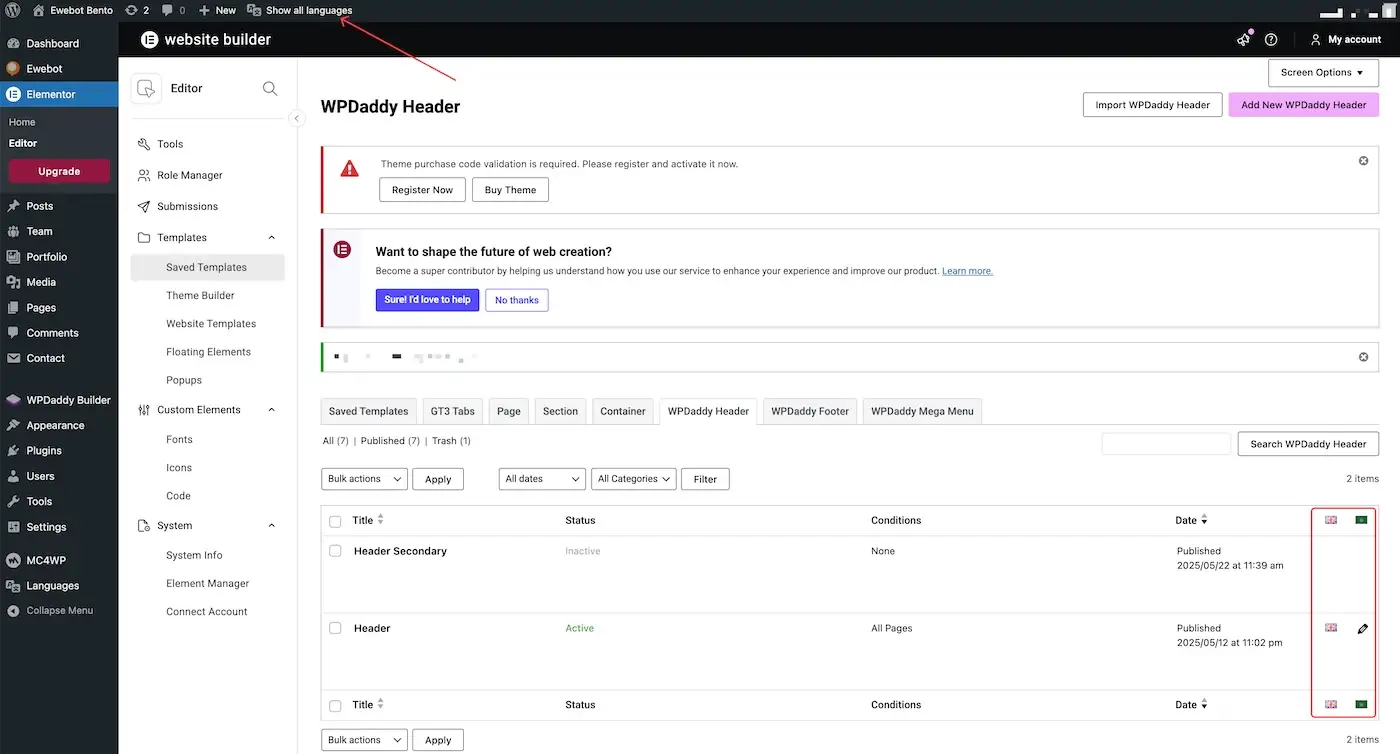
Click the + icon in the language column for the language you need. Polylang creates a copy of the template linked to the original. Edit it with Elementor and replace the content with the translated version.
Keep the layout identical across languages. Change only the text, links, and any language-specific elements like phone numbers or addresses.
Set display conditions#
Each translated template needs its own display condition in Elementor. The condition should match the language: the English header shows on English pages, the French header on French pages.
If you use Polylang's URL structure (subdirectories like /en/, /fr/), Elementor usually picks up the correct template automatically once the Polylang translation link is set. If it doesn't, set the display condition manually for each language version.
Common issues#
Styling differences between languages - longer translations (German, Ukrainian) can break layouts. Test each language version separately and adjust padding or font sizes where needed.